
You posted a Google review, hit publish, and moved on. Then life happened. Maybe the business fixed the issue. Maybe your first review was too harsh. Maybe you spotted a typo that makes you sound like you wrote it half asleep. It happens.
The upside is that Google lets you edit a review you already posted. You do not need to delete it and start over unless you want a full reset. In most cases, you can open your past review, change the star rating, rewrite the text, and save the update in under a minute.
If you are searching for how to edit a Google review, you are in the right place. This guide walks you through the steps on desktop, mobile search, and Google Maps. I will also cover what to do if your review will not update, how edits affect businesses, and when deleting the review makes more sense than editing it.
If you run a business, this matters from the other side too. Reviews can change after a customer issue gets resolved, which is one reason reputation follow-up matters so much. If you want a better system for collecting and managing feedback, take a look at how RatingFlow works for review collection and feedback routing.
Why people edit Google reviews
Most review edits happen for ordinary reasons. A customer leaves a frustrated review after a delayed service call, then the company makes it right. A diner posts a three-star review, returns a week later, and has a much better experience. A shopper writes fast on their phone and notices later that the review is full of errors. None of that is unusual.
I think this is one of the better parts of online reviews. People are allowed to change their minds. A review should reflect your honest experience, not trap you in the mood you were in ten minutes after a problem. If a business improves, your review can improve too. If things got worse after your first post, you can update that as well.
You might edit a Google review to change your star rating, revise your written comments, add fresh details, remove outdated details, or fix spelling and grammar. Google gives you room to do any of that from the same review editor.
If you are a business owner reading this, edited reviews can shift public perception fast. One updated review can calm future customers. Ten updated reviews can reshape how your profile looks in search. That is part of why so many local brands focus on steady review generation and response workflows. If you want to understand the bigger picture, this guide to online reputation management gives helpful context.
How to edit a Google review on desktop
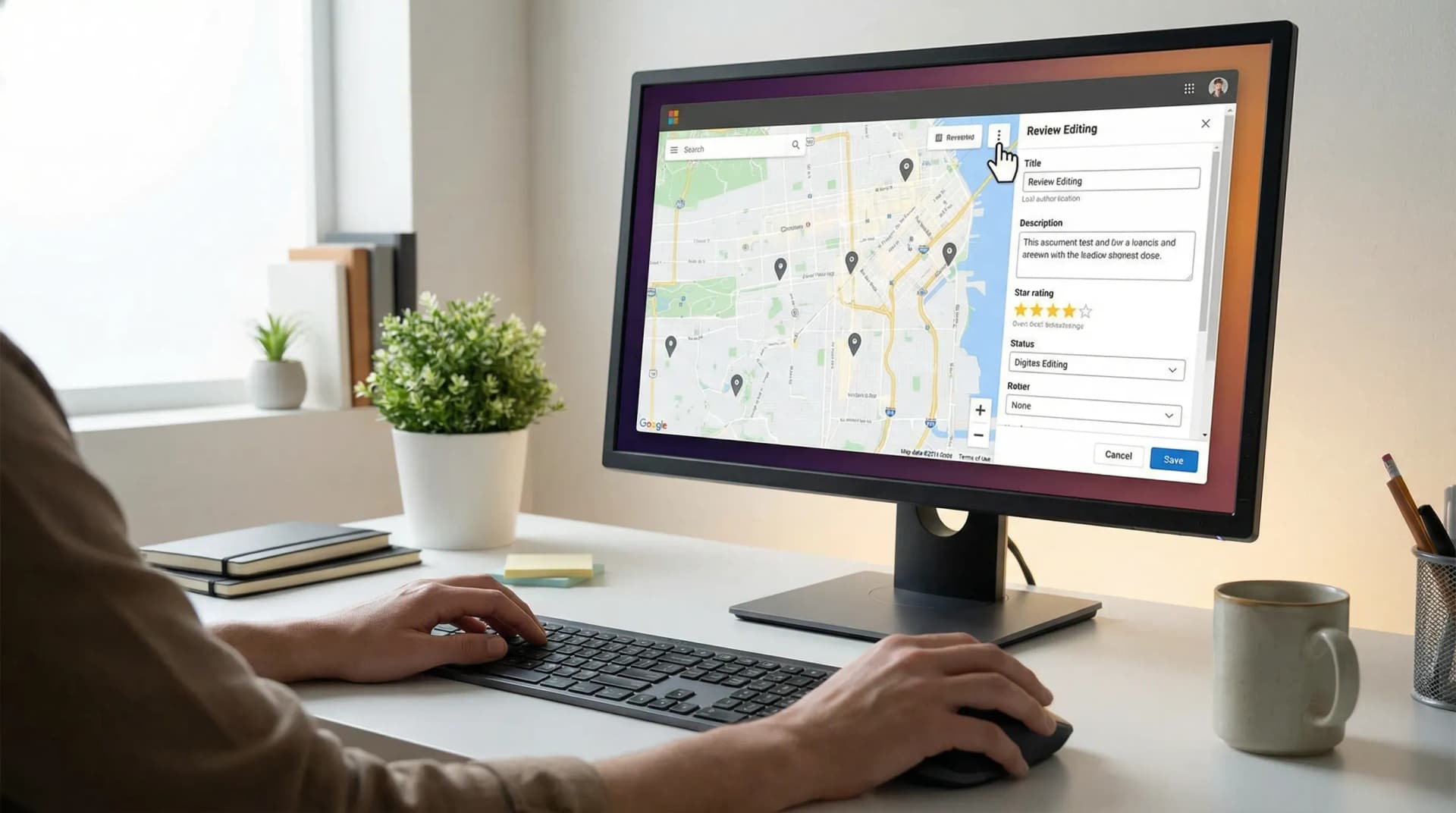
Editing a Google review on a computer is straightforward. You can do it through Google Search or Google Maps while signed into the account you used when you posted the review. That account part trips people up more than you would think. If the review seems to have vanished, you may be in the wrong Google account.
Here is the desktop method that works for most people.
Open your Google account
Sign in to Google with the account that posted the review. If you have work and personal accounts, check the profile icon before you do anything else. I have seen people waste ten minutes searching for a review that was sitting in another account the whole time.
Find your contributions
Open Google Maps in your browser. Click the menu or your profile picture, then go to your contributions or your profile activity. In many cases, you can also search the business name directly in Google Search and pull up your review from there if you are logged in.
Locate the review
Go to the reviews section under your contributions. Scroll until you find the business and the review you want to update. If you leave a lot of reviews, using search inside Maps can save time.
Edit the review
Click the three-dot menu next to the review. Choose Edit review. You can then change the star rating, rewrite the review text, or both. Once you are done, click Post or Save to update it.
Check the live version
After you save the changes, refresh the business profile and confirm the update appears. Edits often show up fast, though there can be a short delay. If the review does not look changed right away, give it a little time before assuming something broke.
If your goal is to remove the review entirely instead of editing it, read how to delete or remove a Google review. Editing and deleting are close cousins in the interface, but they do very different things.
How to edit a Google review on mobile

If you use your phone for everything, you are not stuck waiting until you get to a laptop. You can edit a Google review through the Google app, your mobile browser, or Google Maps. Most people find Google Maps the easiest path because your review history is easier to locate there.
The steps on mobile look a little different depending on your device, but the flow stays close to the desktop version.
Open Google Maps or Google Search
Start with the app you use most. Google Maps tends to be cleaner for review management. Make sure you are signed into the same account that posted the review.
Go to your profile and reviews
Tap your profile photo, then open your profile, contributions, or reviews. Google changes labels now and then, which can be annoying. The wording may shift, but you are looking for the section that stores your past review activity.
Select the review you want to change
Find the business review and tap the three-dot menu beside it. Choose Edit review. The review editor should open with your current rating and text already filled in.
Update your rating or comments
Tap the star rating if you want to raise or lower it. Edit the written review if your experience changed or your original wording needs work. Then save or post the revision.
Confirm the update
Return to the business listing and check whether the edited review appears. If it does not show right away, close the app and reopen it after a short wait.
Mobile editing is easy, but the small screen can make it easy to miss errors. I would reread the edited review once before posting. A rushed correction that creates a fresh typo is the kind of tiny chaos that feels way too human.
How to edit a Google review in Google Maps
Google Maps deserves its own section because this is where most people end up. If you want the shortest path for how to edit a Google review, use Maps. It puts your review history and business listings in one place, which cuts down on the back-and-forth.
Here is the quick Google Maps version.
Open Google Maps while signed in
Use the account that posted the review. This matters more than anything else in the process.
Tap or click your profile
Open Your profile, Your contributions, or Reviews. Google has a habit of moving labels around, which is not my favorite design choice, but the review history is still there.
Find the business review
Scroll through your reviews until you spot the one you want to edit. Tap the three dots next to it.
Choose Edit review
Make your changes to the stars, text, or both. Then save the updated review.
That is it. If you can find the review, the editing part is fast. The search for the review is the annoying bit. Once you are in, the rest takes almost no time.
What to do if you cannot edit your Google review

If Google will not let you edit your review, the cause is usually one of a handful of common problems. The review may belong to a different Google account. The app may need a refresh. The review may have been removed for policy reasons. Or Google may not have synced your changes yet.
Start with the account check. Sign out and sign back in with the email you used when you posted the review. If you manage multiple Gmail accounts, this is the top suspect. It is boring, but boring problems cause a shocking amount of tech frustration.
Next, update the Google Maps app or switch to a desktop browser. If the mobile app is glitching, the browser version may work without drama. You can also clear cache, close the app, and reopen it. That old advice sticks around because it still fixes stuff.
If the review no longer appears at all, Google may have filtered or removed it. In that case, editing is not possible until the review is visible again. If you are a business owner dealing with missing reviews on your profile, this article on why a Google review is not showing and how to fix it can help you sort through the usual causes.
There is also the chance that your edit saved, but the public listing has not refreshed yet. Wait a bit, then check again. Search systems can lag, and that lag can make you think your update failed when it did not.
When you should edit instead of delete
Editing makes sense when your core experience still stands, but the details changed. Maybe service recovery improved your view from two stars to four. Maybe your original review had the right point but sloppy wording. Maybe you want to add context after the owner replied. In those cases, editing keeps the history of your opinion while making it fairer.
Deleting makes sense when the original review no longer reflects what you want attached to your name. You may have posted in anger and want to remove the whole thing. You may have reviewed the wrong location. You may want a fresh rewrite with no trace of the old wording. That is a personal call.
I lean toward editing when the experience evolved and deleting when the review was a mess from the start. A thoughtful update tells future readers more than a vanished post. It shows that the business responded, or that your view changed for a reason. That kind of context matters.
How review edits affect businesses
For businesses, an edited Google review can carry more weight than a brand-new one. A revised review often signals that a customer complaint got handled. People read that and think, okay, this company pays attention. That reaction matters, especially for local service businesses where trust drives clicks, calls, and bookings.
Star changes can affect average ratings over time. Written changes can soften harsh criticism or add praise that was missing before. That is why asking for feedback and responding fast matters so much. If a frustrated customer hears from you quickly, there is a fair shot they will update the review after the issue gets resolved.
This is where systems beat guesswork. Businesses that rely on memory tend to miss follow-ups. Businesses that use a process tend to catch them. If you want a cleaner way to request feedback and route unhappy customers before public frustration spirals, you can see the review management features at RatingFlow. The goal is not to manipulate reviews. It is to create a path where customers feel heard before they walk away annoyed.
Reviews also shape local visibility. If you want to understand how ratings and review activity connect to search presence, this article on whether Google reviews help local SEO rankings is worth your time.
Quick answers about editing Google reviews
People tend to ask the same follow-up questions after they edit a review, so here are the short answers in plain language.
Question | Answer |
|---|---|
Can you change the star rating without changing the text | Yes. You can update the stars and leave the written review as it is. |
Can you change the text without changing the rating | Yes. Google lets you edit either part of the review. |
Will the business get notified | The business may notice the updated review on its profile, though notification behavior can vary. |
Can you edit someone else’s review | No. You can edit reviews posted from your own Google account only. |
What if the review is gone | Check the correct account, then see whether Google removed or filtered the review. |
If you are trying to leave a review instead of edit one, the process is different. This guide on how to leave a Google review for a business walks through that step by step.
Edit your review and keep it honest
If you needed the short version, here it is. Sign into the Google account that posted the review. Open Google Maps or Google Search. Find your past review under your profile or contributions. Tap or click the three dots. Choose Edit review. Change the stars, change the text, or change both. Save it.
That is the full answer to how to edit a Google review. It is quick once you know where Google hides your review history. The hard part is not the editing. It is remembering which account you used and finding the menu Google decided to rename.
Keep your review honest. If the business fixed the issue, say that. If your opinion got worse after another visit, say that too. Reviews help when they reflect what happened, not when they freeze one emotional moment forever.